What is a custom practice mode?
A custom mode is a saved group of timing settings. You choose a name, a backswing-to-downswing ratio, and tempo values for its levels. It is useful when you want to keep a particular practice setup without repeatedly editing the built-in short or long modes.
Custom modes describe selected timing patterns. They do not contain a measurement or analysis of your swing. Some advanced app features require a subscription; check the current in-app plan details.
1. Open the Mode Center.
From the practice screen, use Customize to open the Mode Center. The Short Swing and Long Swing sections contain the built-in level settings. My Modes contains your own saved modes.
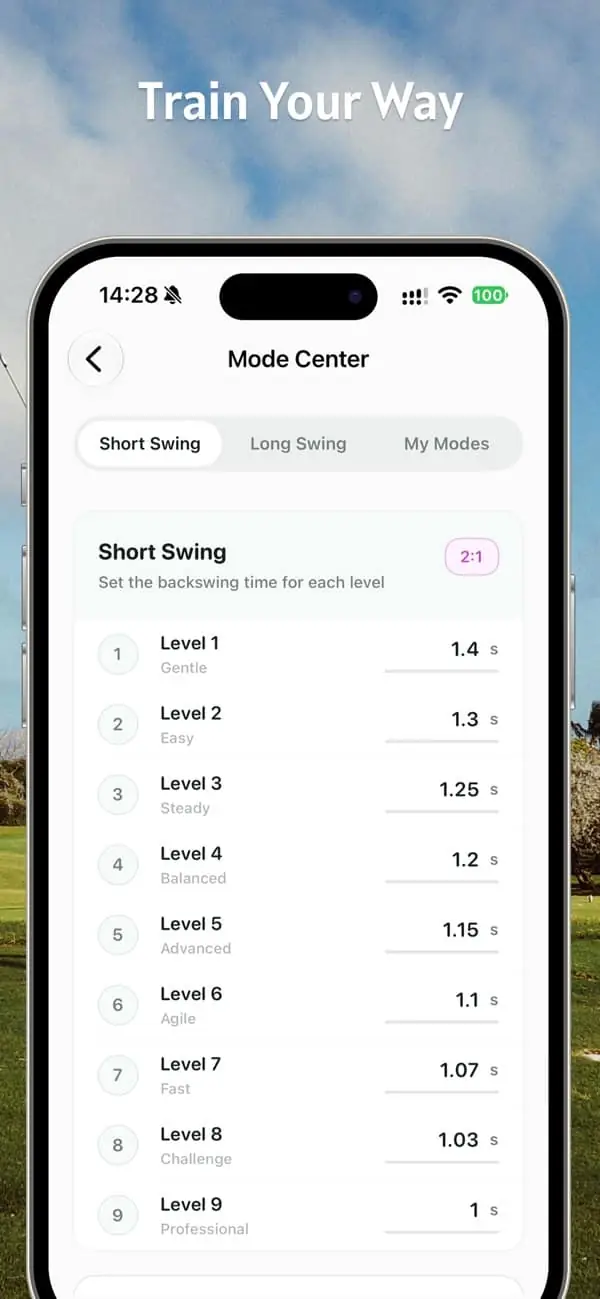
2. Create a named mode.
In My Modes, choose the add or create action. Start with short- or long-swing data and give the mode a name you will recognize later, such as “Range reference.” The name is a label for your settings, not a prescribed training target.
3. Set the ratio and level times.
Choose the backswing-to-downswing ratio you want to hear. Decimal ratios such as 2.5:1 or 2.75:1 are supported. Edit individual tempo values to organize the paces you want to compare, and save your changes before leaving the editor.
At 2.75:1 and 1.50 seconds total, the downswing is 1.50 ÷ 3.75 = 0.40 seconds. The backswing is 1.50 − 0.40 = 1.10 seconds.
After selecting the saved mode on the practice screen, check Back, Down, and Tempo together. Changing the ratio changes how the total time is divided. Changing total time while keeping the ratio fixed changes the overall pace.
4. Return to the mode in your next session.
Your custom modes and selected settings are stored on your device. Open My Modes to edit a saved mode’s name, ratio, and levels, or remove a mode you no longer use. Device storage does not imply that the settings are synchronized to another iPhone.
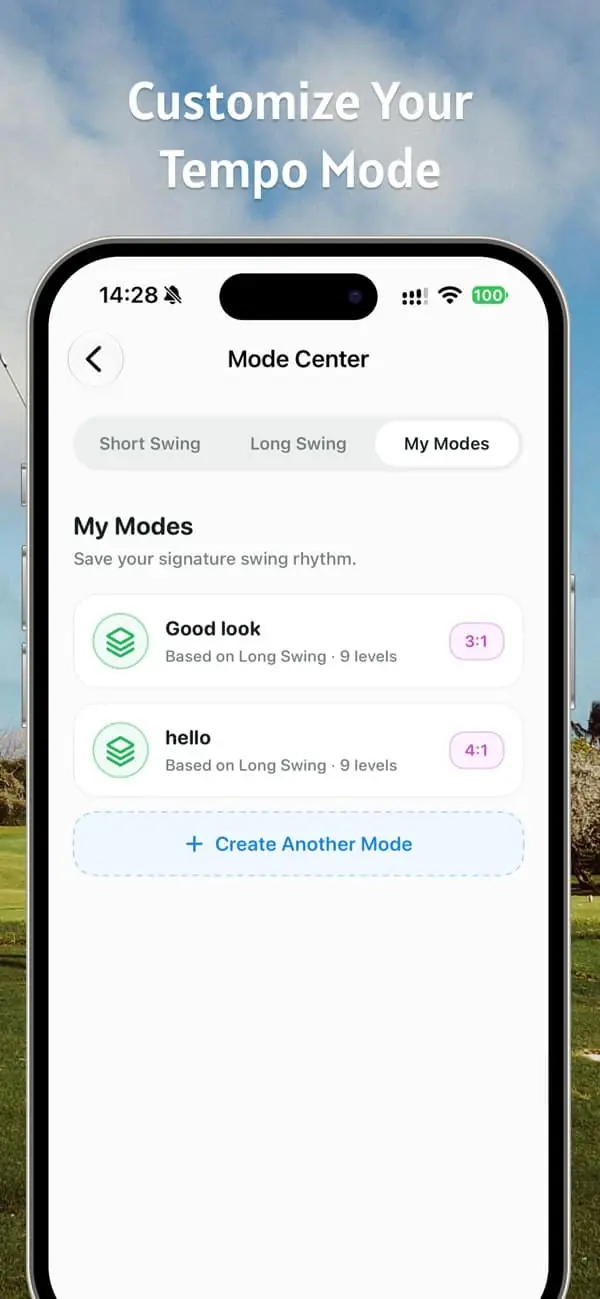
Before saving your reference pattern
- Check that the name makes it easy to identify.
- Listen to the ratio and pace together before practicing.
- Confirm your edits are saved, then check the timing values on the practice screen.
- Change one setting at a time if you want to compare the effect of an adjustment.
If you are deciding on a starting pace, read how to set up audio-guided practice. For product compatibility and current features, see the official App Store listing.