Start by listening, not by chasing a faster setting.
Choose a pattern in the free online golf tempo trainer or open Golf Tempo on your iPhone. The three sounds mark start, top of the backswing, and impact. Listen to a complete sequence before trying to move with it.
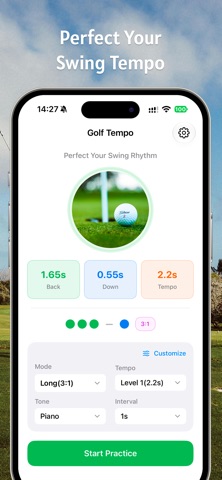
Pick a mode that matches the pattern you want to explore. The app’s short and long modes use 2:1 and 3:1 respectively. If those labels are unfamiliar, first read how golf swing tempo and ratios work.
1. Find a comfortable starting pace.
Begin with a relaxed rehearsal in a clear practice space. Try a timing pattern, then decide whether you feel hurried, comfortable, or held back. There is no single preset on this page that is claimed to fit everyone.
- Feeling rushed? Lengthen the total swing time while leaving the ratio unchanged.
- Waiting for the next cue? Try a slightly shorter total time and listen again.
- Not sure? Repeat the same setting before making another change.
For an example comparison, listen to 3:1 at 2.20 seconds, then 3:1 at 1.60 seconds. These demonstrate different paces; neither is a required target.
2. Set enough rest between swings.
The swing time and the rest interval have different jobs. Swing time sets the spacing of the three movement cues. Rest gives you time to prepare for the next sequence. Increasing rest does not change the backswing-to-downswing ratio.
The app offers intervals of 0, 1, 2, 3, 5, or 10 seconds. The website trainer offers 1, 2, 3, 5, or 10 seconds. Choose enough time to reset without hurrying; the browser trainer includes a three-second lead-in before the first swing.
3. Keep the first session simple.
- Listen once to your chosen pattern.
- Set 5 swings and a rest interval that leaves time to reset.
- Start gently and use the cues as reference points.
- Pause when the session ends and decide whether the pace felt comfortable.
- Adjust one setting, then compare another short session.
This is an example for learning the controls, not an individualized training plan.
4. Choose a sound and check your output.
The iPhone app offers piano, guitar, drums, beeps, synthesizer, voice, 8-bit sounds, and water-drop cues. Its Bluetooth and AirPlay support lets you use compatible audio devices. The website uses a simple three-note tone.
Check your volume and intended output before moving. If your external audio setup seems inconsistent, compare it with the phone or computer’s built-in speaker first.
Common practice setup questions
The next swing starts before I’m ready.
Increase the rest interval. If the movement itself feels rushed, lengthen the total swing time separately.
I keep changing several settings and lose my reference.
Keep the ratio fixed while exploring pace. Once a setting feels useful, give it a clear name in a custom app mode.
The browser audio stops when I switch apps.
The online trainer intentionally pauses when its tab is hidden. Return to the page and press Start practice for a new lead-in. Keep the tab visible during a session.
I want to know if my movement matched the sounds.
The audio trainer does not measure your actual swing. It provides a timing reference; checking your movement requires observation or another measurement method.